User Guide
An introduction to the basics of using High Climb, tailored to your situation.
Let's take a look at how to use High Climb
The key things to know first, plus how to log in.
What is High Climb?
It's an app that lets everyone "visualize" gym problems together. AI detects holds from photos of the wall so you can register problems, and you can keep your attempts and videos alongside them. Even at gyms that aren't officially onboarded yet, you can be the first user to create and run things.
All features are free during the Beta. Just log in with a Google or Apple account to get started.
Is your gym already registered?
How you use the app depends on whether your gym is already registered or you're about to register it. Pick the tab that matches your situation.
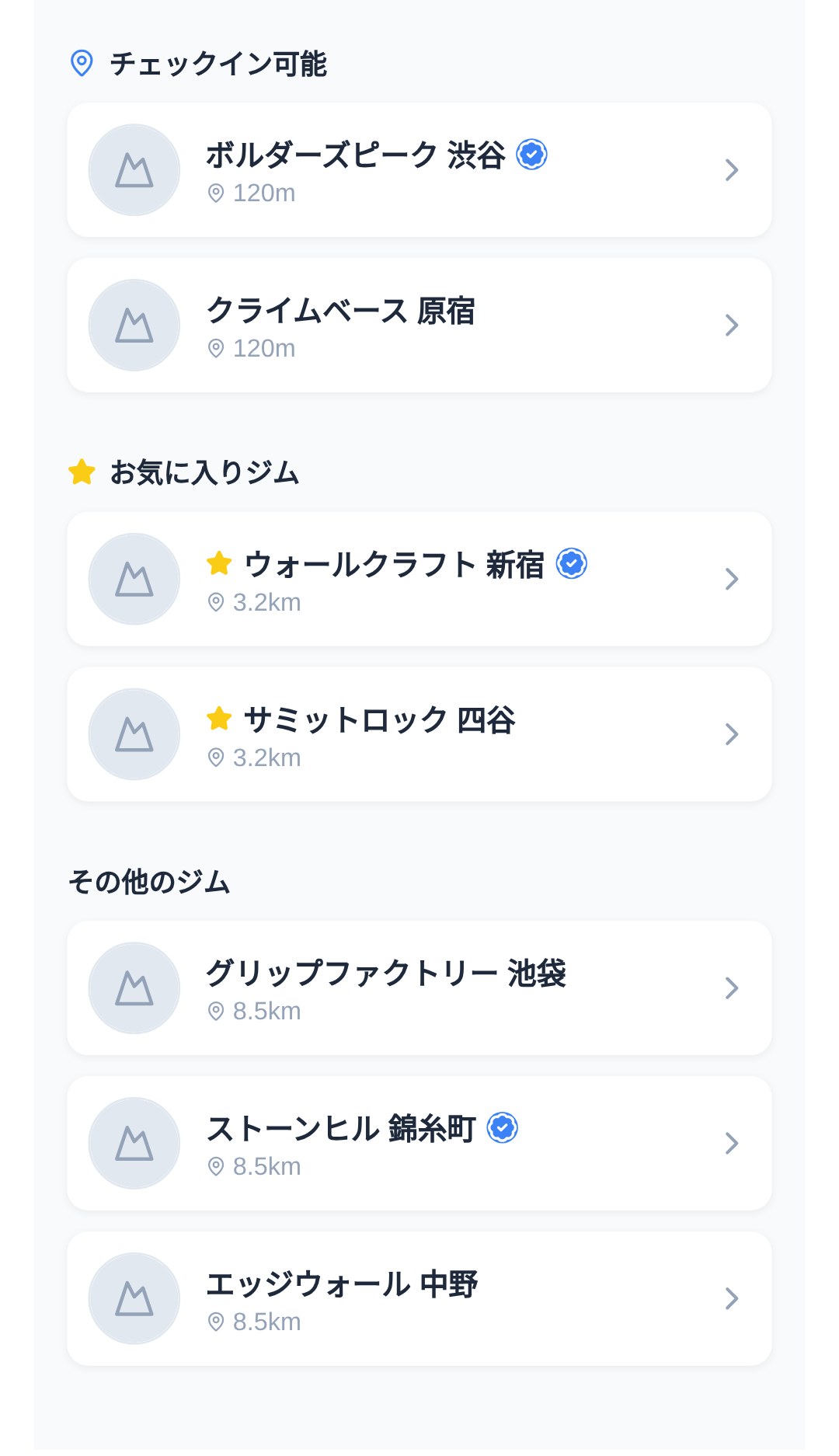
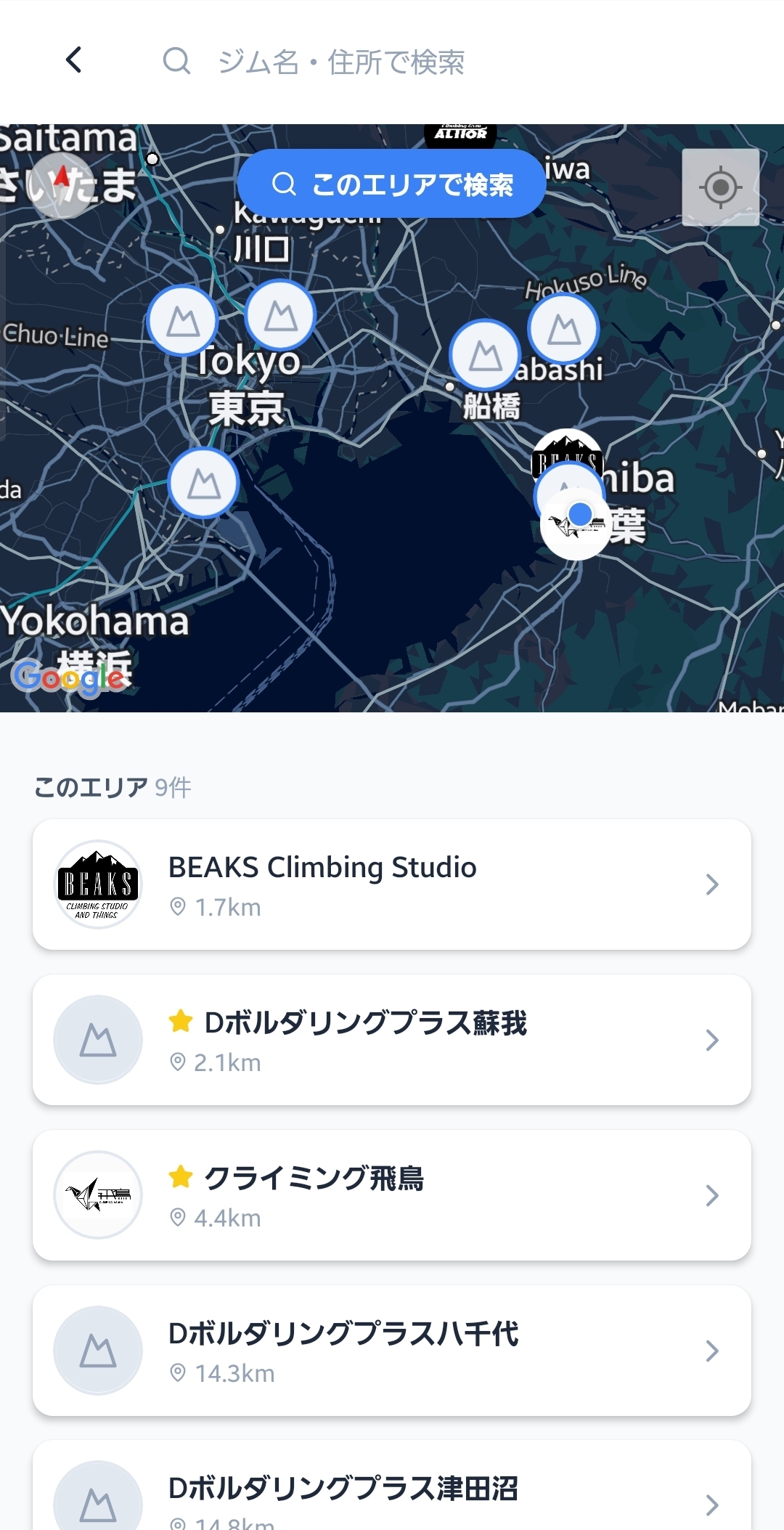
Find a gym and check in
Nearby gyms appear in a list based on your location. If you add the gyms you visit often to your favorites, you'll get a notification when new problems are added, so you won't miss anything.
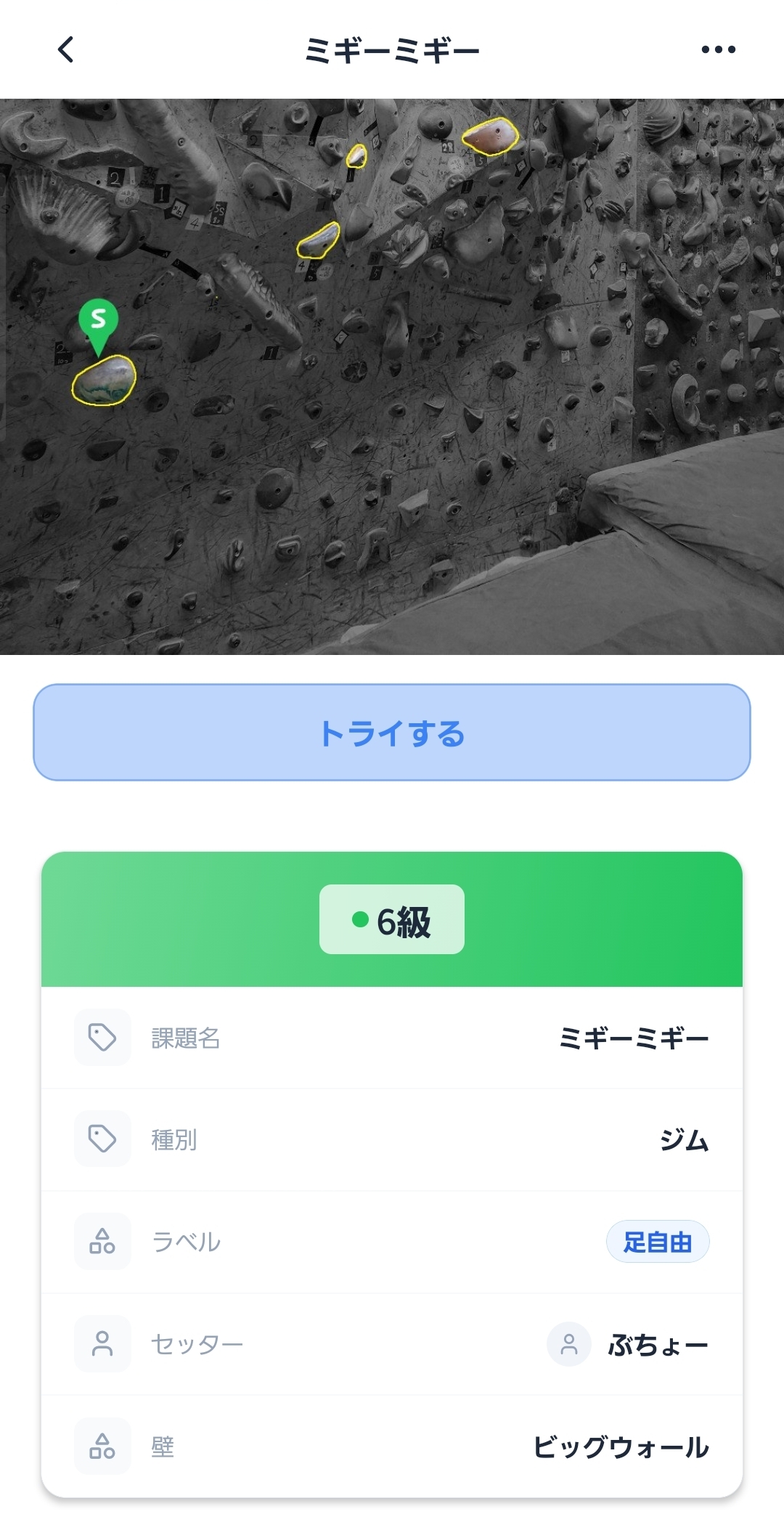
Find problems
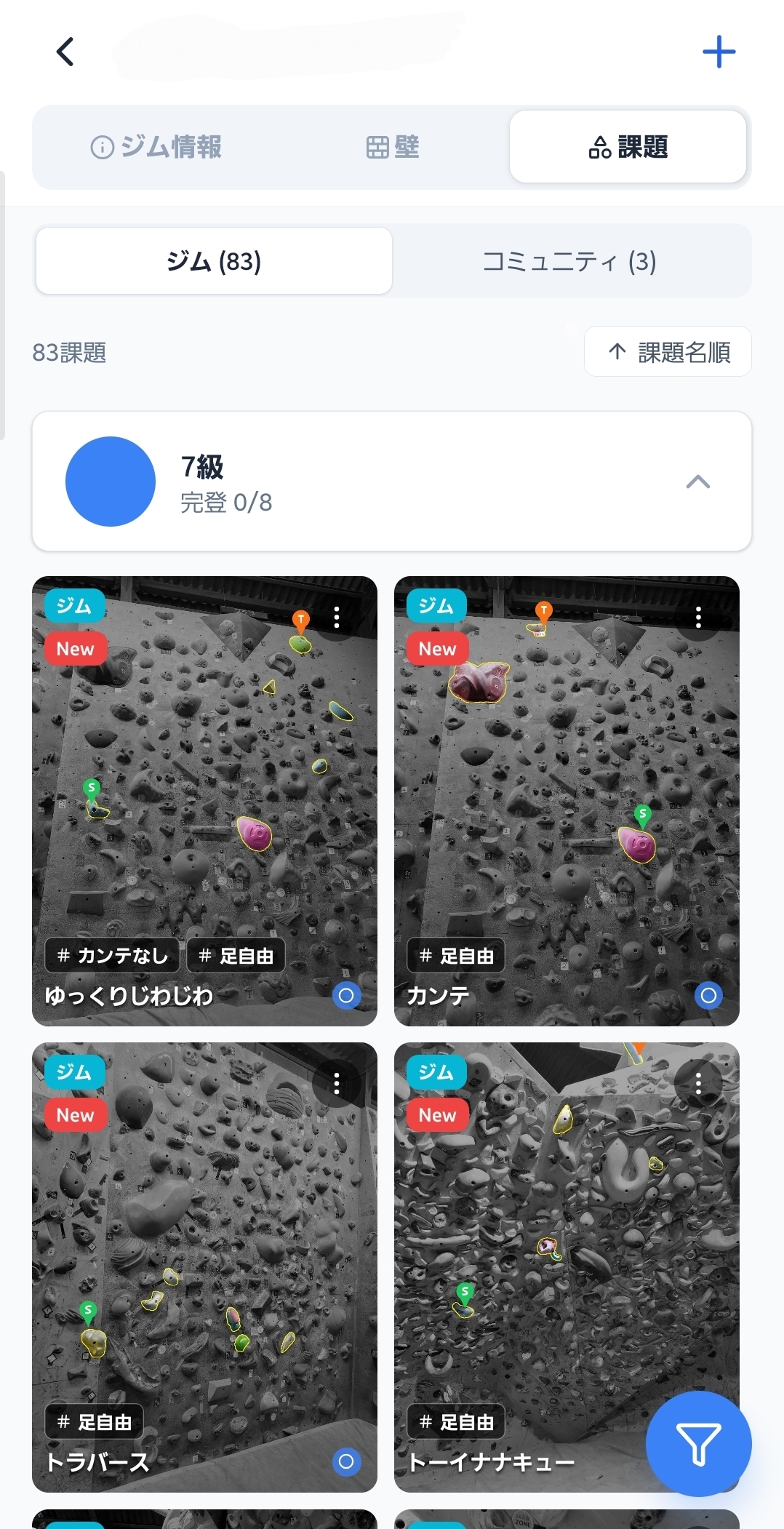
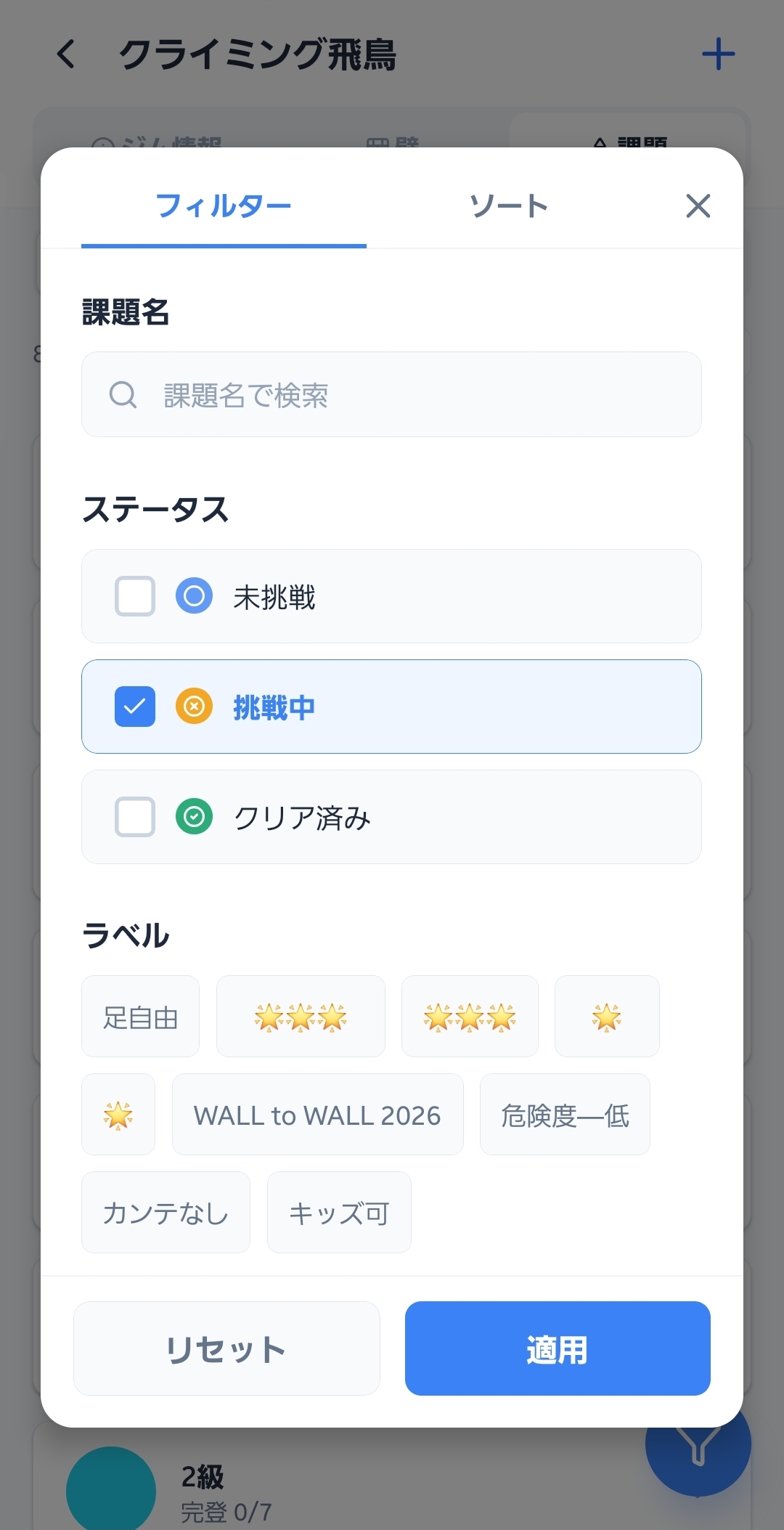
The problem list is split into two types: "Gym problems" and "Community problems." Use filters to narrow by grade, wall, setter, send status, and more, then open a problem that catches your eye to view its details (hold layout, videos, comments).
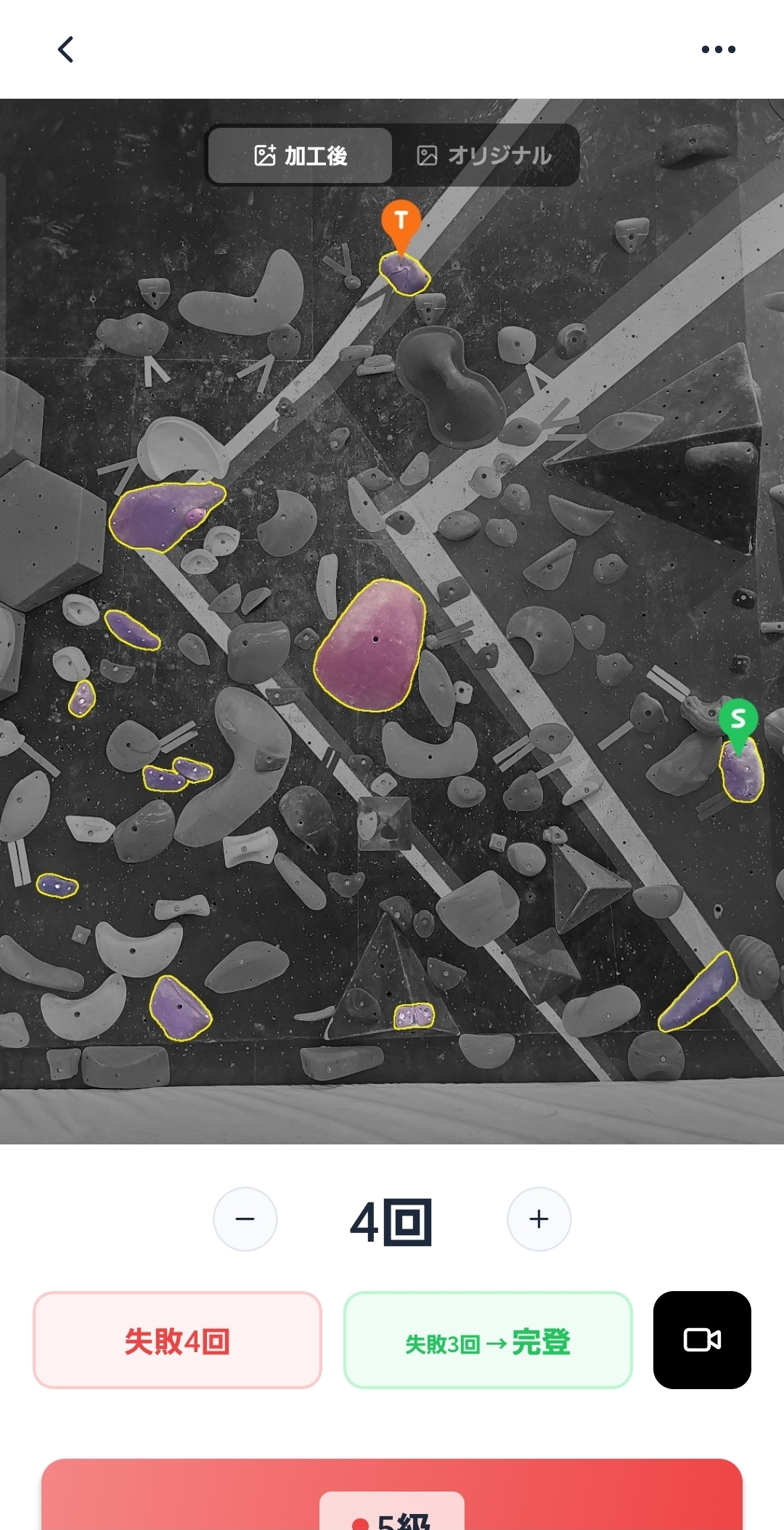
Record attempts and sends
Record a send, flash, one-shot, or fail for each problem with a single tap. There's also a bulk-input sheet that lets you "+1" several tries at once, so you can keep logging without breaking your flow while you climb.
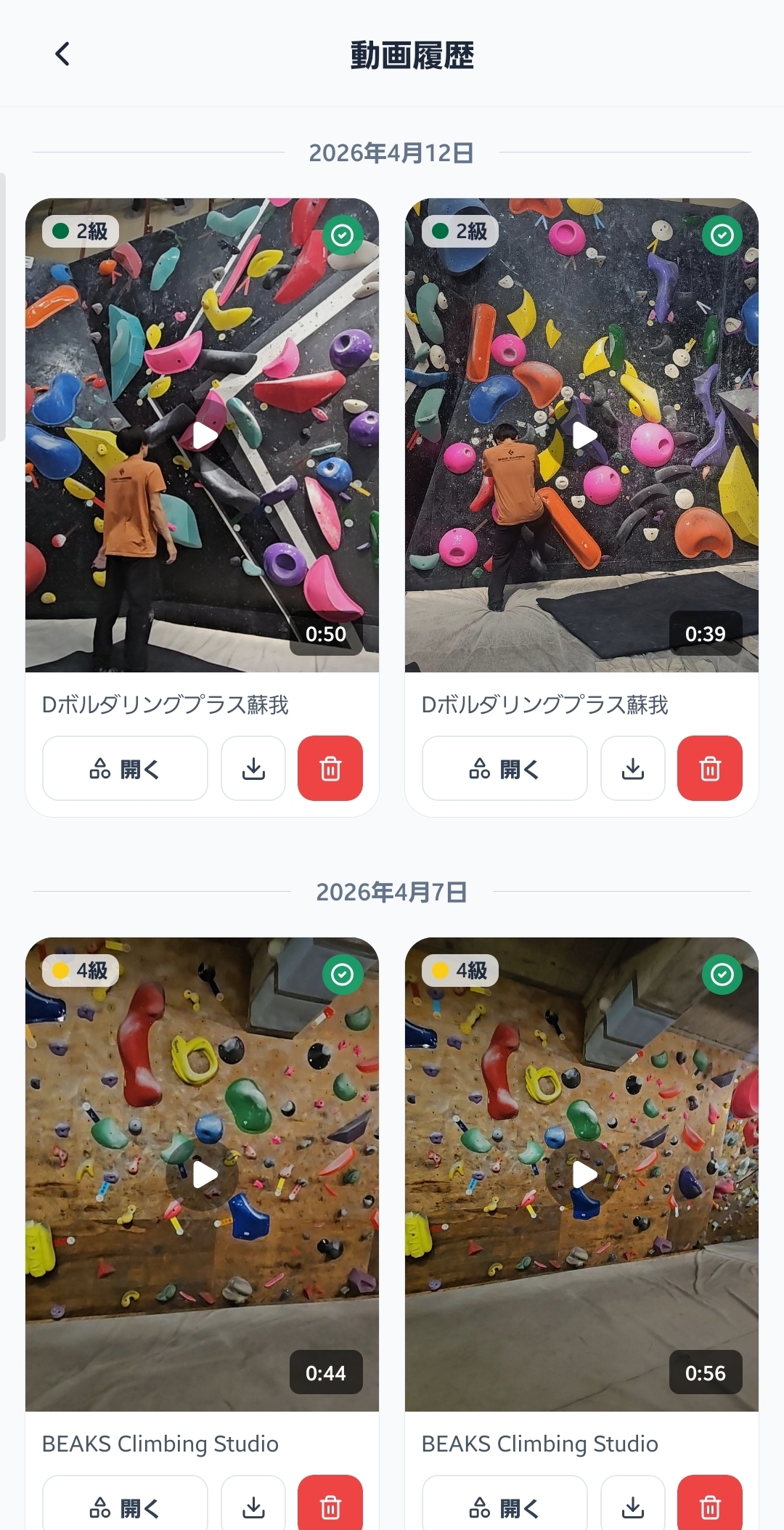
Keep videos
Shoot with the in-app camera → trim just the part you need → link it to a problem and post — all in one stop. Posted videos are grouped by problem and in your own video history, so you can use them to review your moves later.
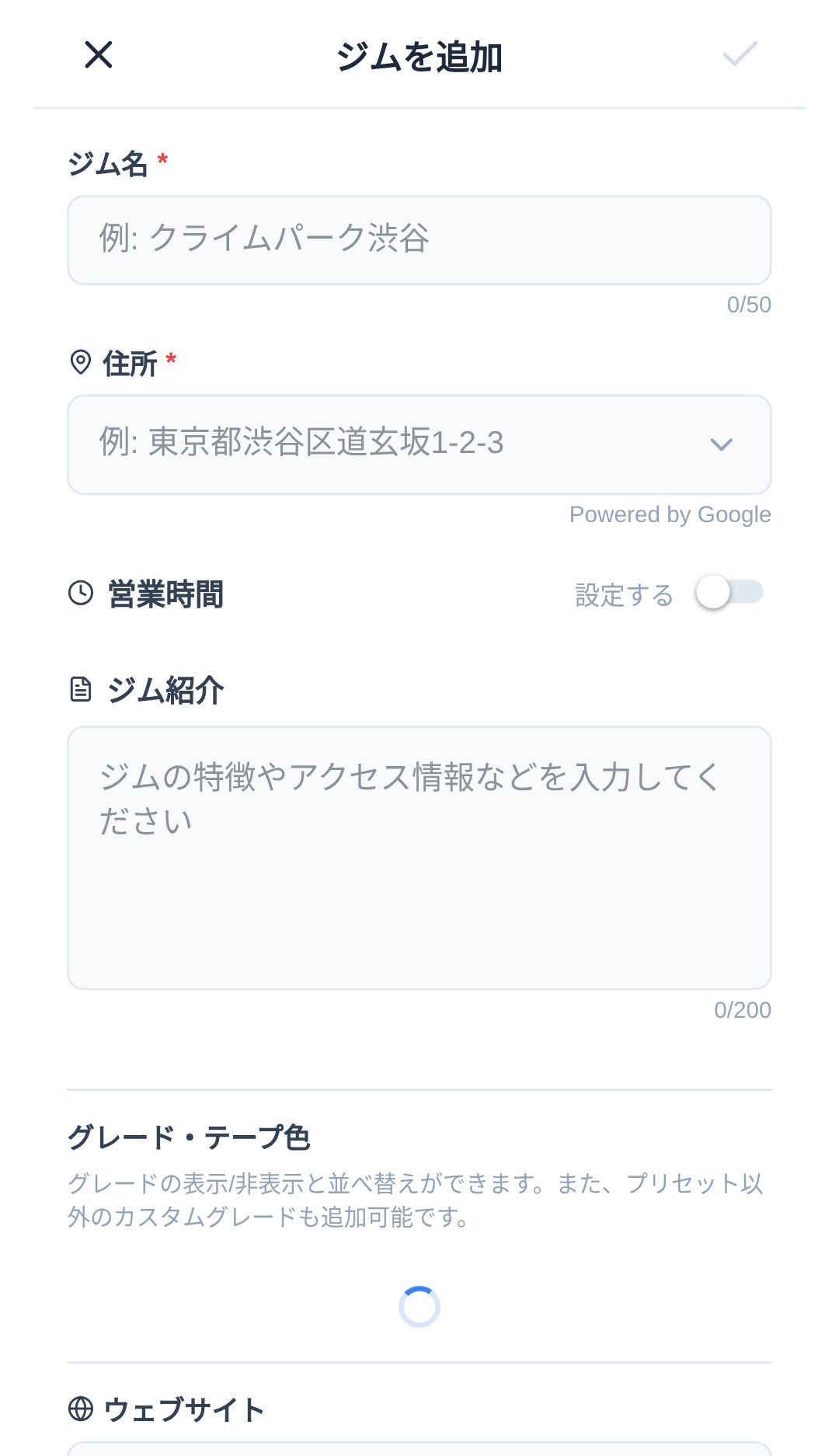
Create a gym
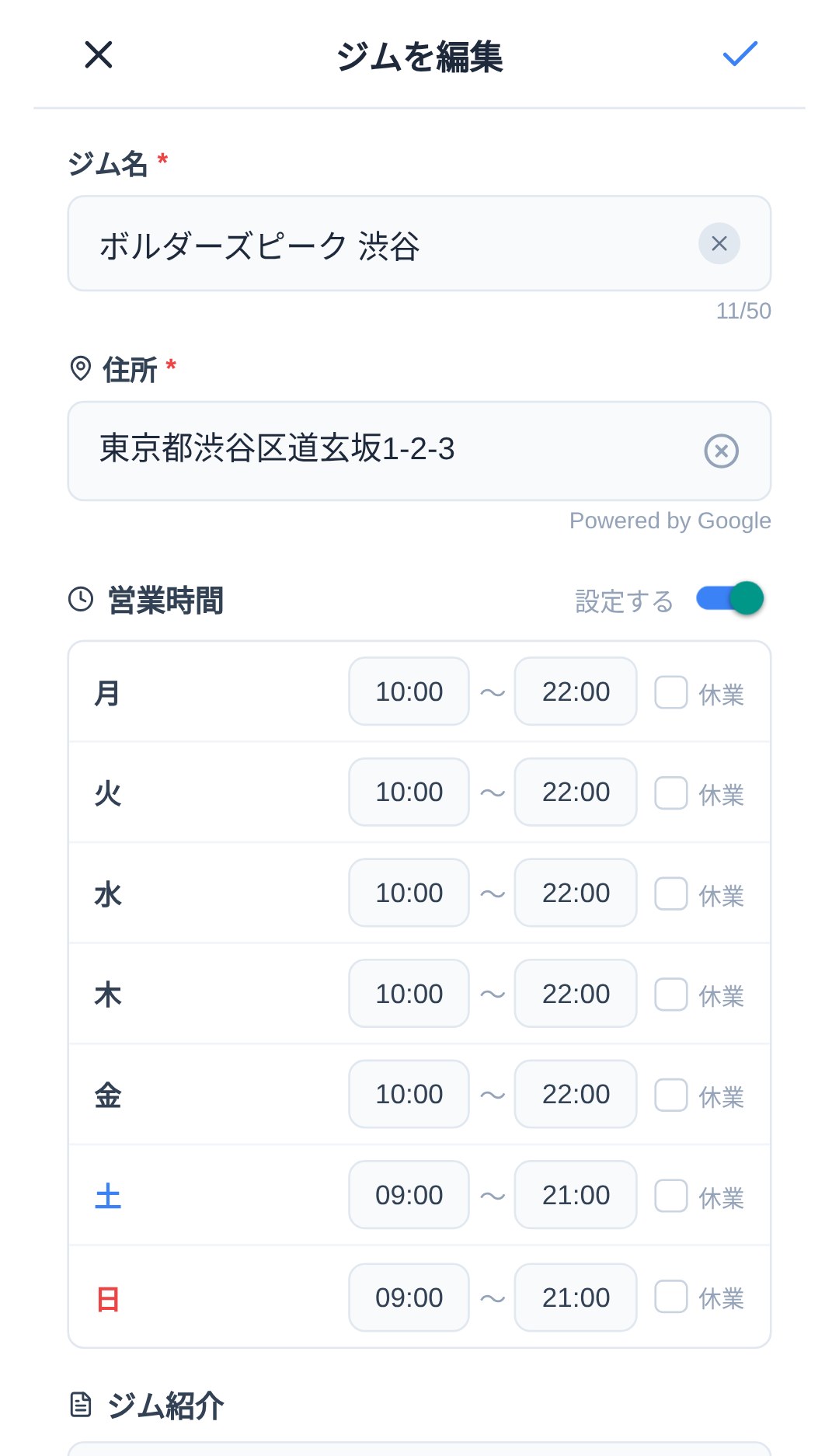
When no nearby gym appears in the list, you can create a new one yourself. Once you register the basic information such as gym name, address, and business hours, anyone can then edit it to add walls and problems.
Register problems from a wall photo
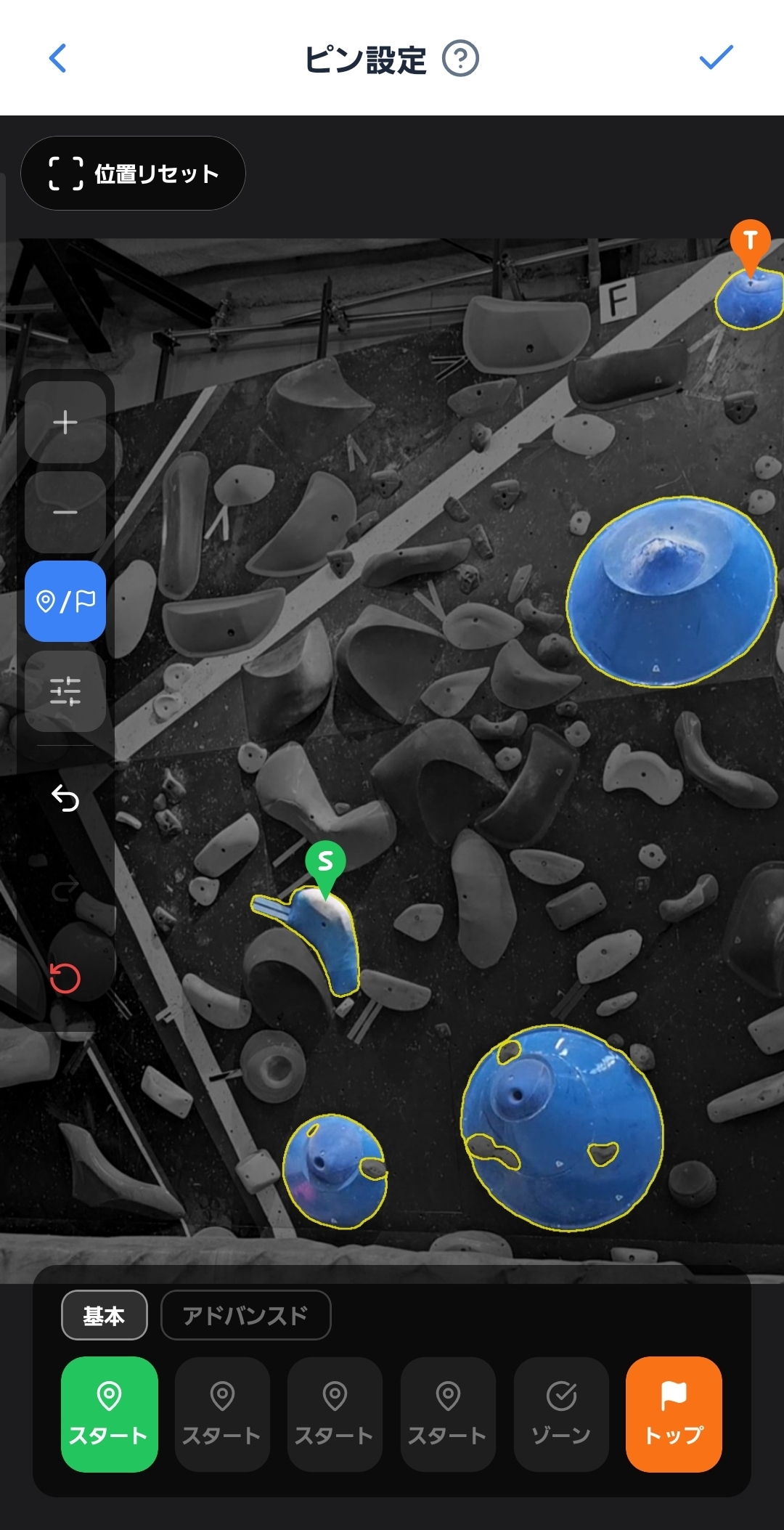
Photograph the whole wall with the camera → AI analyzes the holds → tap to paint the holds → enter grade and setter info and save.
Get your friends using it
The problems you register become visible to other climbers who frequent the gym. Aim to complete all the gym problems, or create your own community problems to explore new possibilities. The ways to play on the same wall multiply.
Visualize what you've climbed as growth
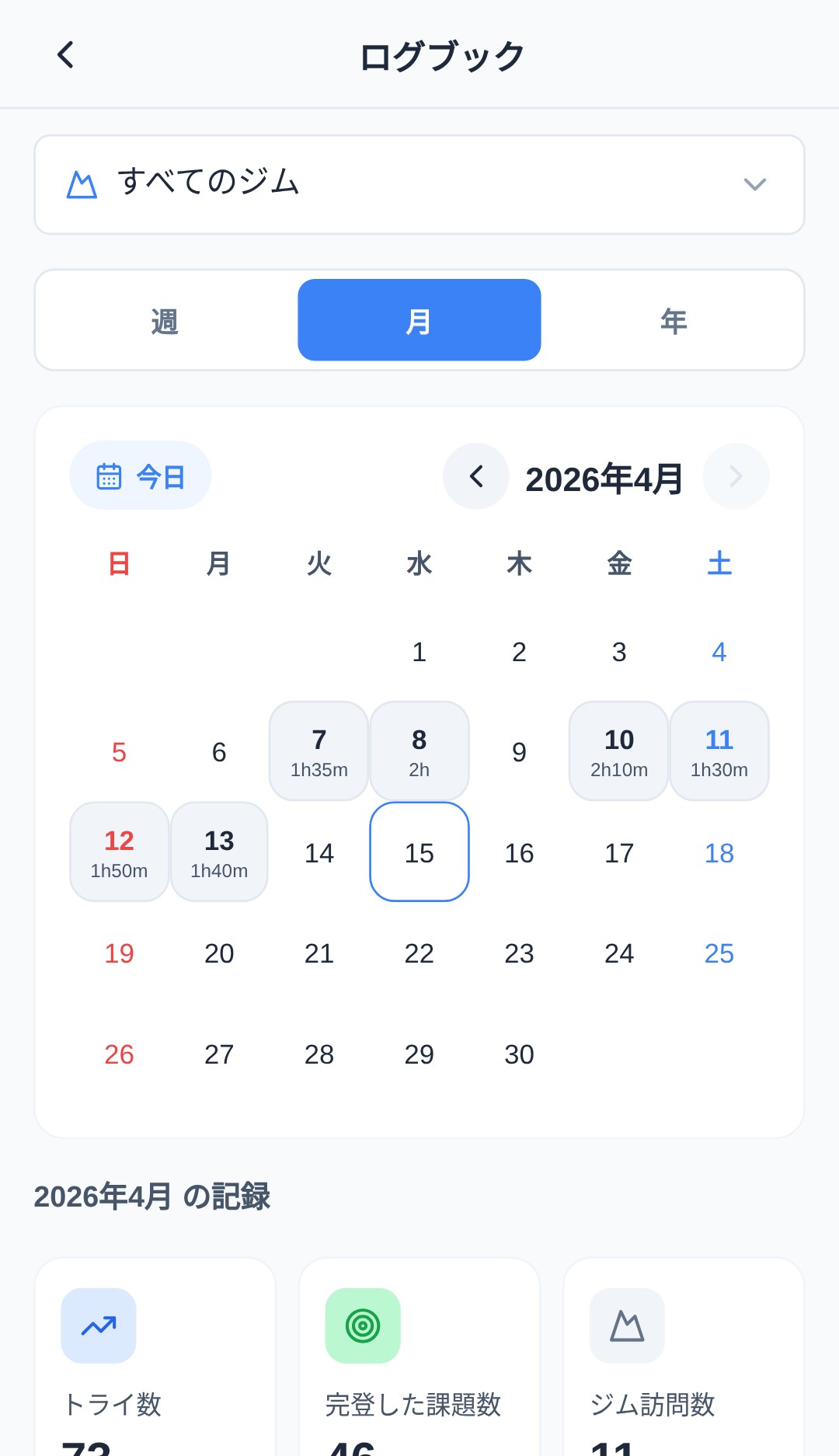
With the logbook, your monthly try count, send count, gym visits, and grade distribution are clear at a glance.
Review with the logbook
A dashboard where your monthly try count, send count, gym visits, grade distribution, and trends are clear at a glance. From the calendar you can also jump to your time spent and the problems you climbed on a given day.
Connect with friends and share your results
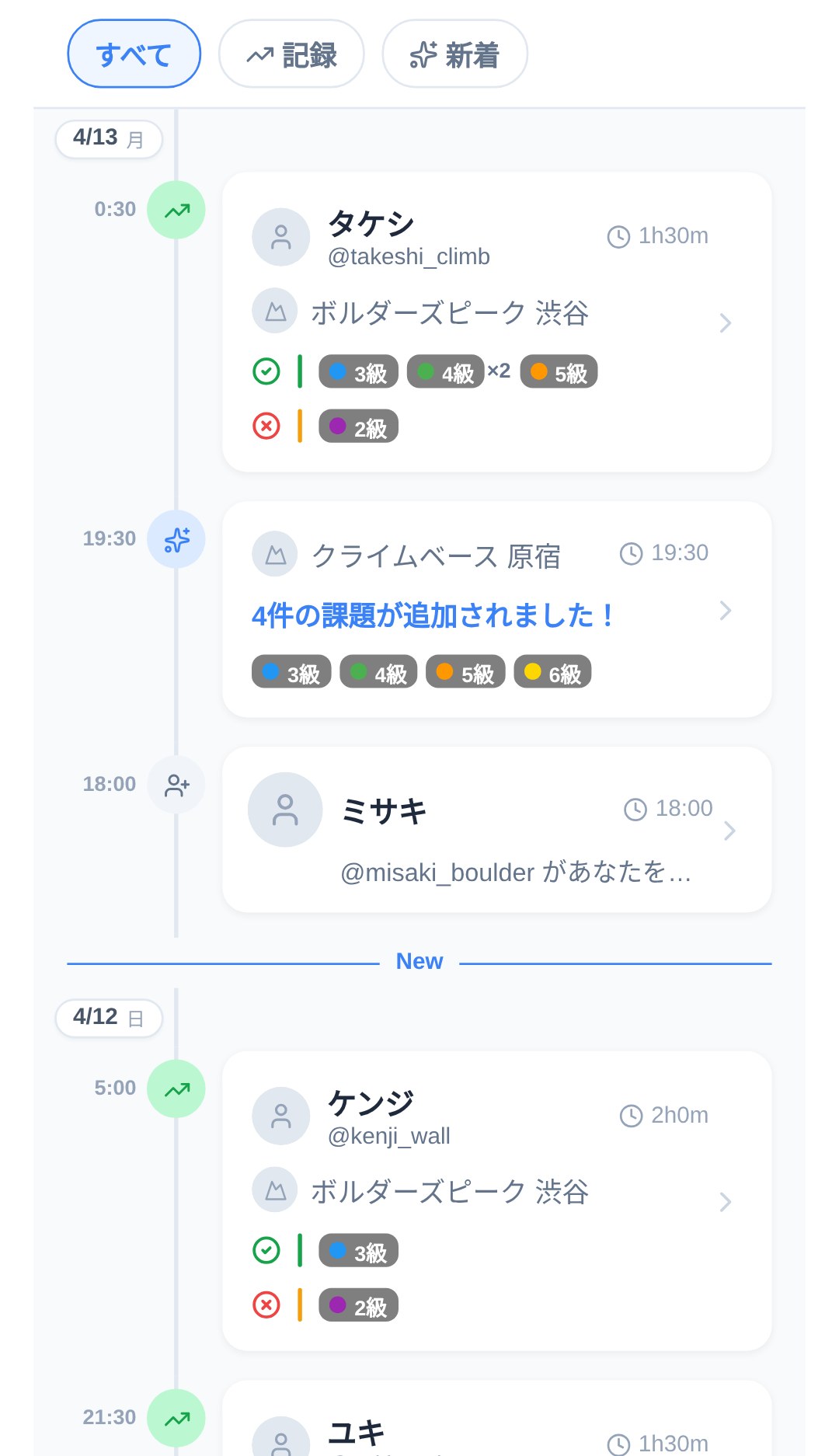
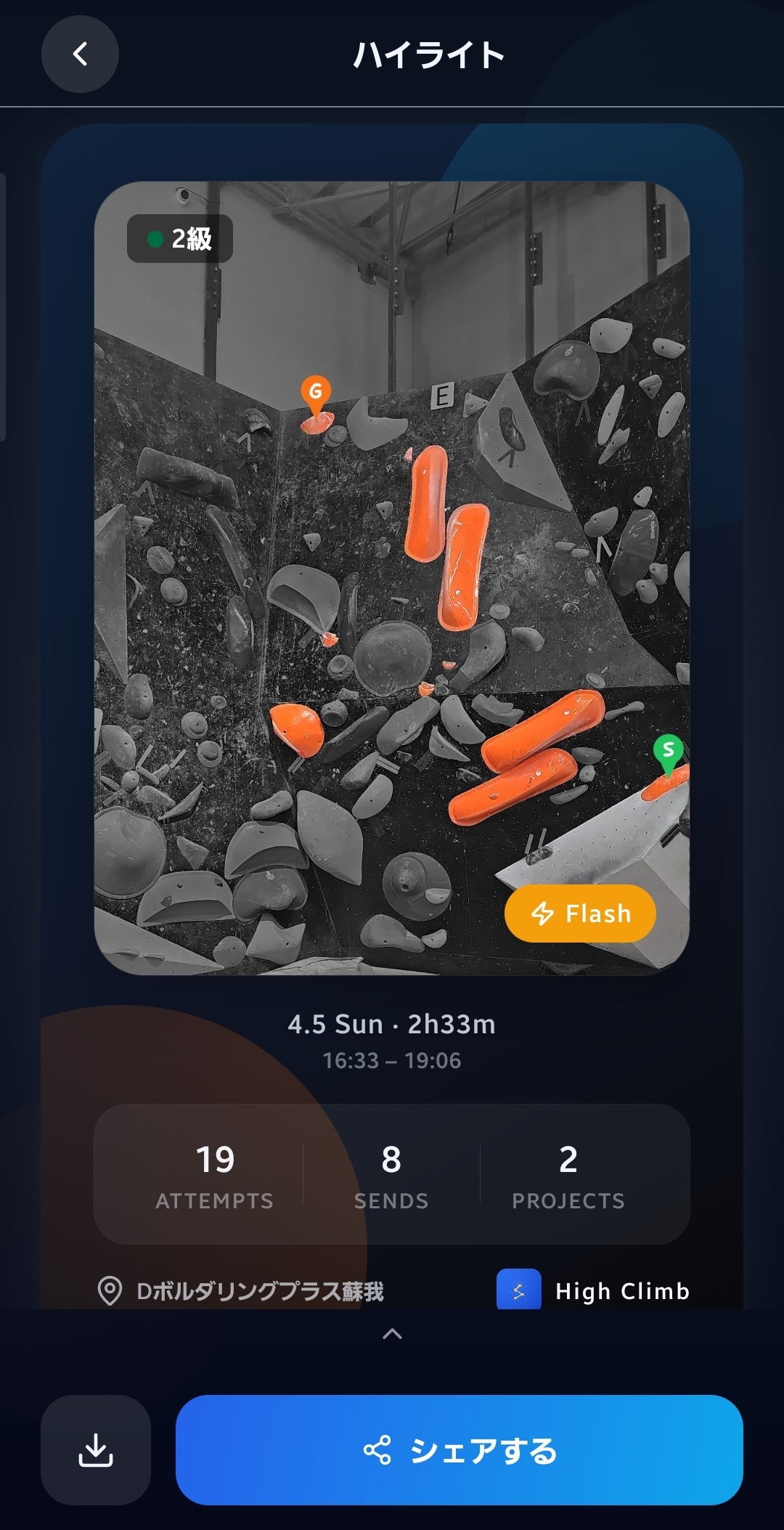
Check the climbs of the friends you follow in your feed. You can share your own daily summary to social media as an image.
Connect with friends
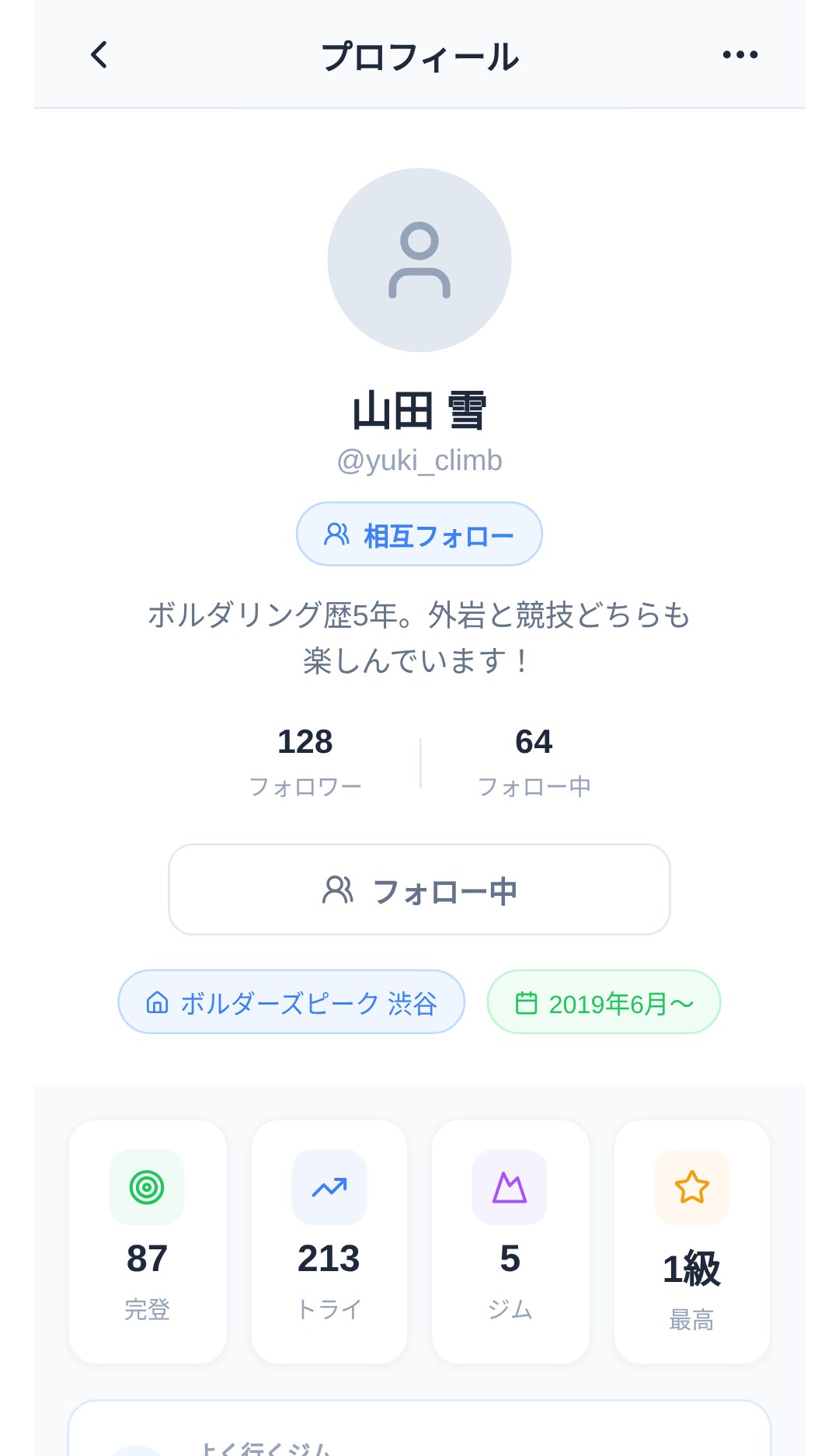
The check-ins and sends of the friends you follow flow into your activity feed. From a profile, you can also see that person's per-gym results and grade distribution.
About filming and recording
So everyone can enjoy the gym comfortably, here's some filming etiquette and how the rating system works.
Filming etiquette
When filming inside a bouldering gym or facility, please follow the facility's rules and etiquette.
- If other users might appear in the shot, get their permission in advance or take sufficient care to avoid capturing them.
- Please refrain from posting content that includes other people's faces or personally identifiable information without permission.
- If a facility prohibits filming, please do not use the filming feature within that facility.
How skill rating works
This app automatically calculates a skill value from the grades of the problems you've climbed and your results on them (send, no send, number of tries). It's used to estimate problem difficulty and visualize your growth.
- Because the rating is calculated automatically, users cannot manually change the value.
- It is reference information only and does not guarantee the safety of your climbing. Please act at your own responsibility.
How location data is used
This app uses location data only with the user's permission. It is obtained only while the app is in the foreground (displayed on screen), and we do not track your location in the background.
- Displaying nearby gyms (calculating distance from your current location)
- Determining check-in (confirming whether you're within a 500-meter radius of a gym)
Even if you don't allow the use of location data, you can still use the main features other than nearby gym display and check-in detection. For details, please see the Privacy Policy (Japanese).
Feel free to reach out
Whether something isn't working, you have a feature request, or a bug report — anything is welcome.
If there's anything you're unsure about,
feel free to contact us at support@highclimb.app.For inquiries about official gym adoption, please also see the For Gym Owners page.